


Cmd J AI Assistant
Active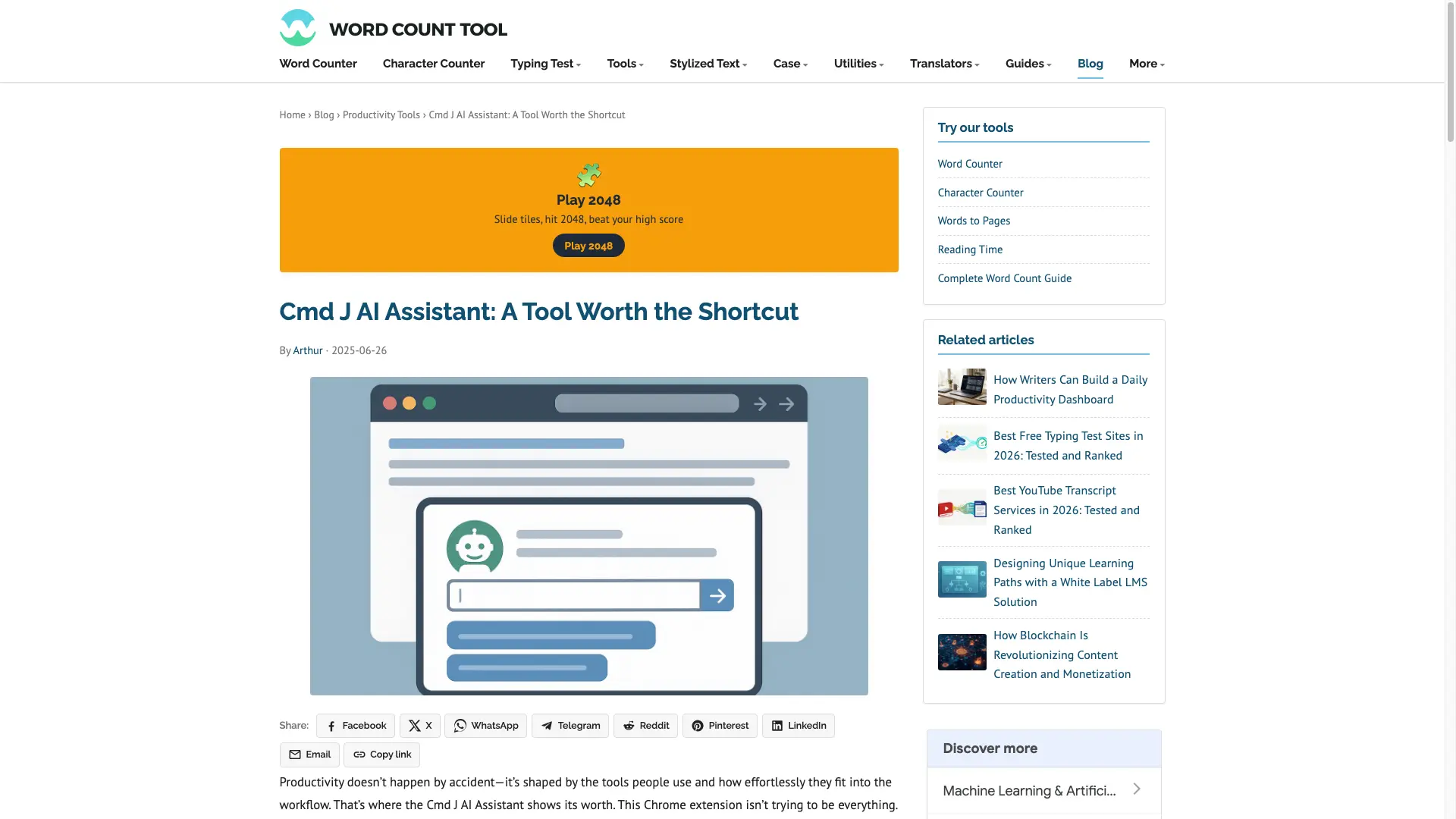
What is Cmd J AI Assistant?

How to use Cmd J AI Assistant?
Cmd J AI Assistant Core Features
Popup Interface That Doesn't Get in the Way
Pressing the shortcut opens a compact popup where you type, hit enter, and get a response — no full window, no redirect, and no broken flow.
Context-Sensitive Suggestions
The assistant adapts to the task: summarize a blog post, debug a JavaScript loop, or draft a reply, instead of relying on a fixed script or template.
Speed and Simplicity
No document manager or history archive. Cmd J responds quickly inside the active tab so you can read, react, edit, and move on.
Seamless Chrome Integration
Because it runs inside Chrome, there is no need to leave the tab or open an external app — faster than flipping between browser, editor, and documents.
Useful Across Different Content Types
Works on blog posts, spreadsheets, React code, or FAQ sections; it is not limited to one format or task.
Cmd J AI Assistant Use Cases
Drafting a weekly newsletter by prompting 'Write 5 bullets on AI trends'
Fixing a broken piece of Python code pasted directly into the box
Summarizing a technical research article in plain English
Improving the tone of a customer support reply before sending it
Creating social media posts from a long blog draft
Cmd J AI Assistant Frequently Asked Questions
What is Cmd J?
How do I open Cmd J?
Is Cmd J free?
Do I need my own OpenAI account?
Which browsers are supported?
Cmd J AI Assistant Product Background & Official Links
Cmd J AI Assistant Support Email & Customer service contact & Refund contact etc.
More Contact, visit the about us page(https://install.cmdj.app/blog/productivity-tools/cmd-j-ai-assistant)
Cmd J AI Assistant Pricing
Cmd J AI Assistant Pricing Link: https://install.cmdj.app/blog/productivity-tools/cmd-j-ai-assistant
Cmd J AI Assistant Pricing & Plans
Free
Free- Fewer prompts per session
- Slower response speed
- Sufficient for casual use
Premium
Recurring- Removes usage caps
- Priority processing
- Faster response speed